
Wishlist Member WooCommerce Plus Remote Access AddOn
Description
The Remote Access add-on connects your WooCommerce store and Wishlist Member membership site and it requires the following plugins:
- Wishlist Member WooCommerce Plus
- External Membership Sites Add-On
[note note_color="#FFD89B"]
The Remote Access Add-On is required only if your WooCommerce store & Wishlist Member membership site are managed on separate domains and WordPress installations
[/note]
The Remote Access main purpose is to make sure that members who purchase a membership product from your online store will be registered to your membership site properly (both new and existing members).
There are 2 Ways to Get the Remote Access Add-On
- When you purchase the External Membership Sites Add-Ons Bundle - The bundle includes the External Membership Sites Add-On & Remote Access Add-Ons. You get the Remote Access Add-On for FREE (according to the number of licenses you purchase). Purchase the bundle in this link
- If you have multiple external membership sites - You must have the Remote Access Add-On installed on every external membership site, whereas, the External Membership Sites Add-on only needs to be installed on your WooCommerce store only, so if you need additional licenses for more membership sites, you can purchase them by clicking on the Purchase button to your right
How Many Licenses Will I Need for the Add-On?
For every WooCommerce store you will need 1 license of:
- Wishlist Member WooCommerce Plus Plugin
- External Membership Sites Add-On
For every External membership site you will need 1 license of:
- Remote Access Add-On
For example:
If you want to sell all your products from one WooCommerce store, and you want to integrate your store's products to 3 membership sites you will need:
- Wishlist Member WooCommerce Plus Plugin & External Membership Sites Add-On >> 1 License for Each
- Remote Access Add-On >> 3 Licenses
If you want to sell all your products from 2 different WooCommerce stores, and you want to integrate all products from 2 stores to one membership site you will need:
- Wishlist Member WooCommerce Plus Plugin & External Membership Sites Add-On >> 2 Licenses for Each
- Remote Access Add-On >> 1 License
Can I Purchase More Licenses of the Remote Access Add-On Separately?
Yes, if you need to integrate multiple membership sites and you need more licenses (each membership site requires a license), you can purchase them separately in this link >> Purchase Remote Access Add-On
[note note_color="#ffeee6"]
Special Discount for Purchasing One of the Bundles:
Wishlist Member WooCommerce Plus Bundle (20% Discount) that includes:
- Wishlist Member WooCommerce Plus Plugin
- The External Membership Sites Add-Ons Bundle
- The Member Registration Add-On
- The Custom Post Type Add-On
The Ultimate Wishlist Member WooCommerce Bundle (30% Discount) that includes:
- Wishlist Member WooCommerce Members Discounts Plugin
- Wishlist Member WooCommerce Plus Plugin
- Wishlist Member WooCommerce Plus – External Membership Sites Add-Ons Bundle
- Wishlist Member WooCommerce Plus - Variable Products Add-On
- Wishlist Member WooCommerce Plus – Member Registration Add-On
- Wishlist Member WooCommerce Plus – Custom Post Type Add-On
[/note]
Features
After installing and activating the Remote Access Add-On go to Membership Levels Products Tab.
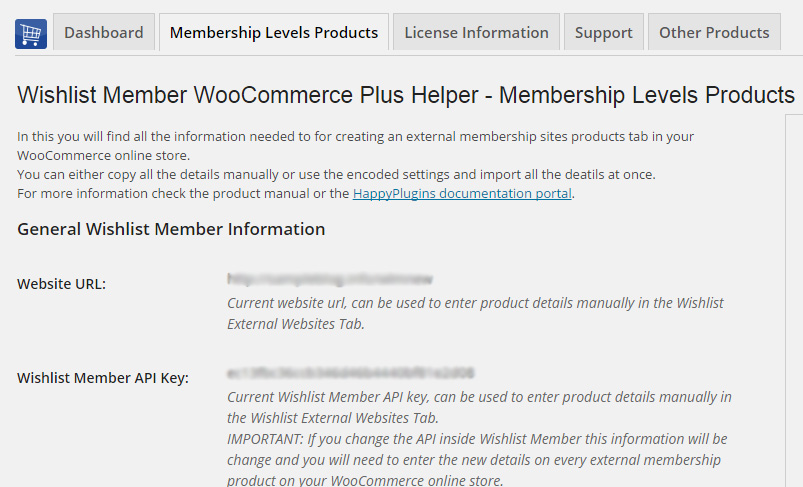
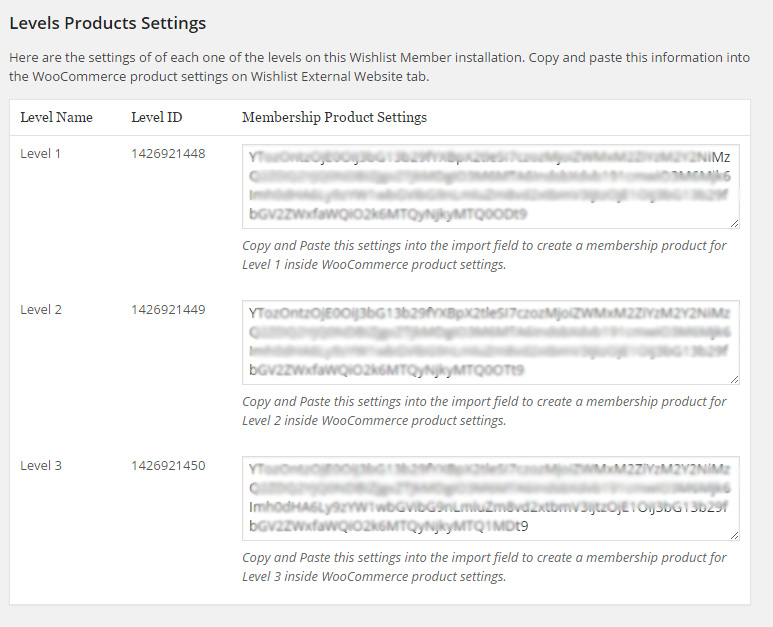
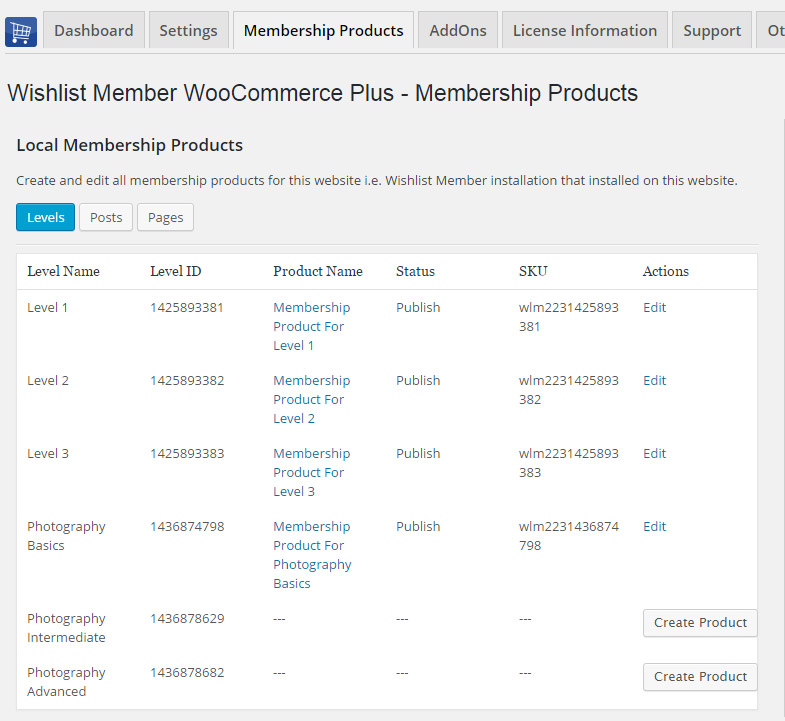
In this tab you will see both Wishlist Member plugin information and encoded settings to help you complete the connection between your WooCommerce store and your Wishlist Member membership site and make sure all members are registered to the membership site properly.
Screenshots of the Membership Levels Products Tab:
1. General Wishlist Member information
2. Encoded membership levels setting - copy the desired code
Inserting the Encoded Settings:
Now paste the code to the "Import Membership Product Settings" and click Publish
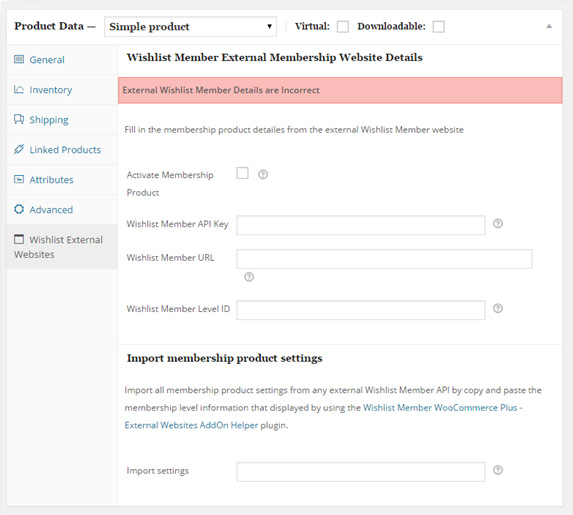
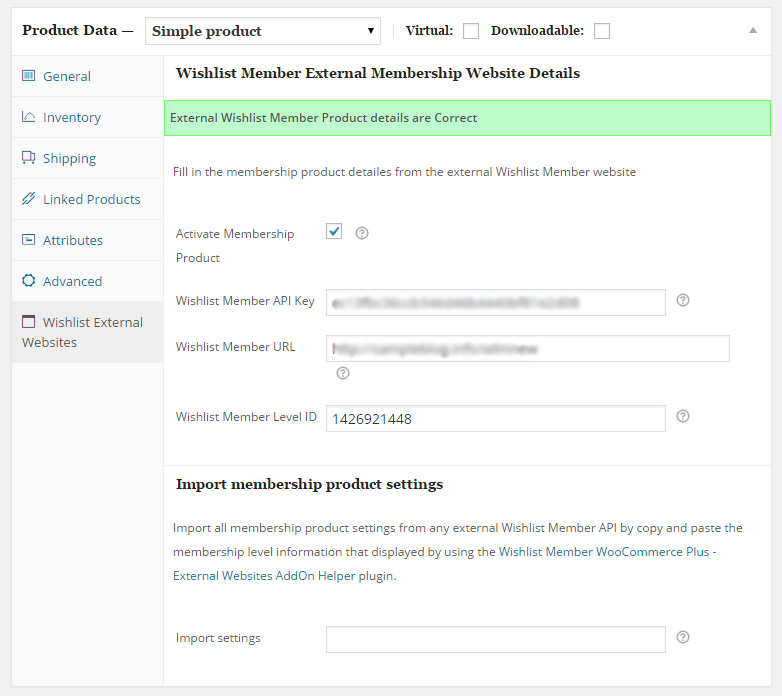
After you click Publish" all the information, including: Wishlist Member API, URL and Level ID will be automatically added as seen below:
Screenshots
- Untitled-3
- Untitled-4
- Untitled-9
- Untitled-7
 Wishlist Member WooCommerce Plus - Membership Products
 Member Registration Add-On
 Custom Post Type Add-On
 External Membership Sites Add-Ons Bundle
 Step #2: Integrate the Membership Level/s and / or Pay-per-post Content (Local Memberships)
Add-Ons
We have enhanced Wishlist Member WooCommerce Plus with powerful features.
These features are sold separately as add-ons and they require Wishlist Member WooCommerce Plus.
These are the Available Add-Ons:
* Click on the add-on's name for more information
- Member Registration Add-On
- Custom Post Type Add-On
- External Membership Sites Add-Ons Bundle
- Variable Products Add-On
Member Registration Add-On
Allows you to register customers to any membership level / pay-per-post after completing a WooCommerce product purchase.
All you need to do to register members automatically to any Wishlist Member membership level and / or pay-per-post is follow 2 simple steps:
- Go to the Products menu and click to edit the relevant product
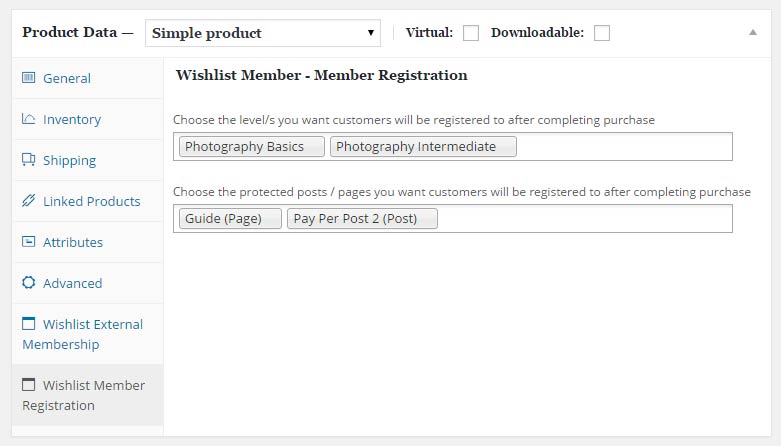
- Go to the Product Data Meta box > under the Wishlist Member Registration tab and choose the membership level/s and / or pay-per-posts as seen in the below screenshot:
Custom Post Type Add-On
Allows you to sell custom post types individually using Wishlist Member & WooCommerce platform.
Integrating the Custom Post Type Add-On in 4 Simple Steps:
- Enable your chosen custom post types within Wishlist Member setting
- Define Wishlist Member settings inside the relevant custom post type
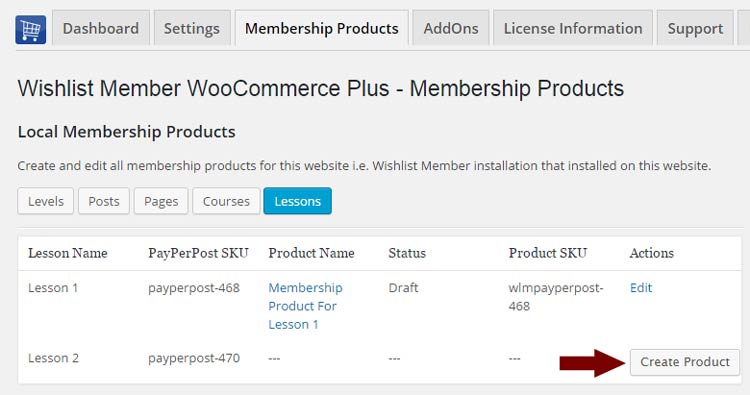
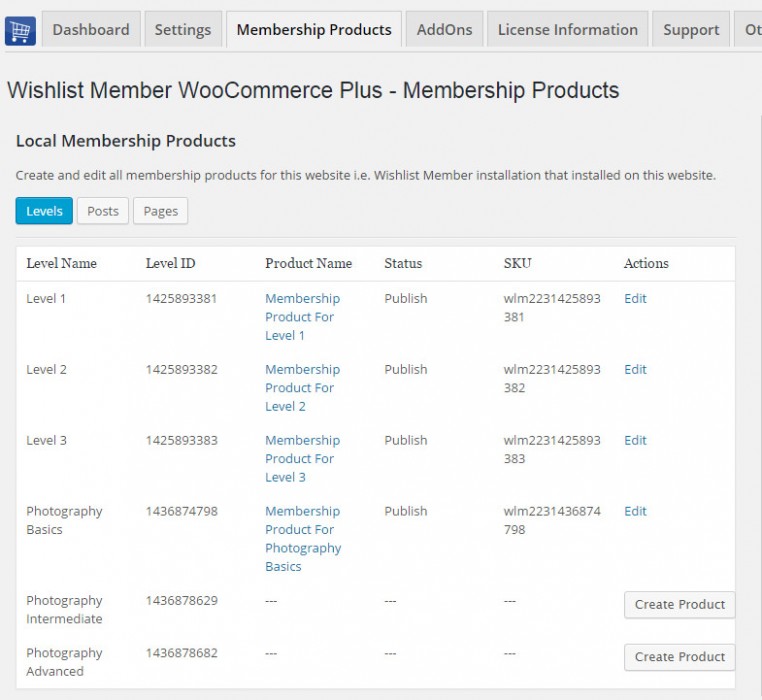
- Create your membership product using Wishlist Member WooCommerce Plus (Notice in the below screenshot that the custom post types were added automatically to the tables)
- Click Edit, define the Product Data settings and content & publish it
External Membership Sites Add-Ons Bundle
Allows you to sell memberships that are located on a separate domain (different WordPress installation) than your WooCommerce website.
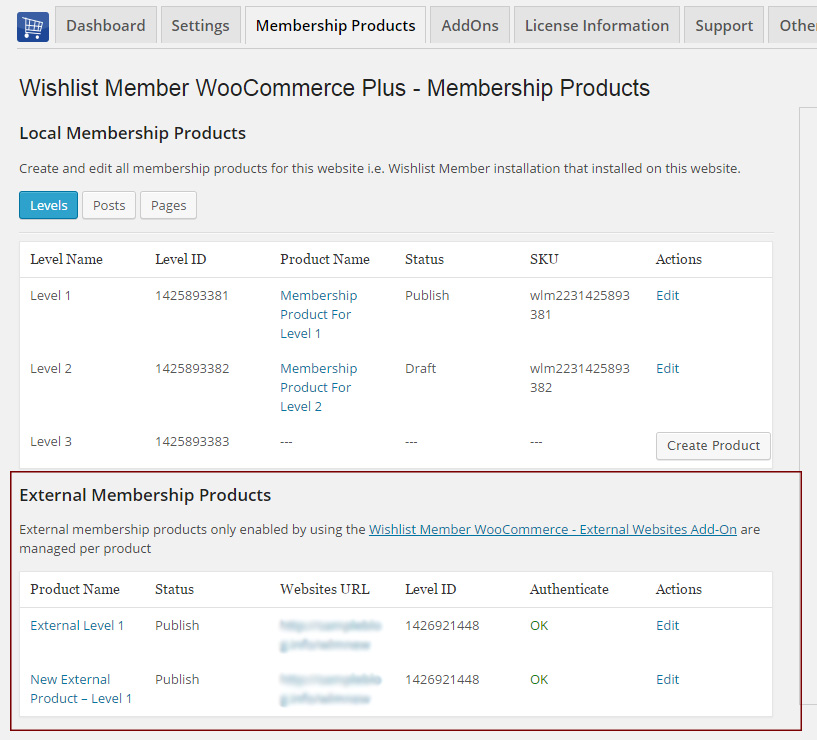
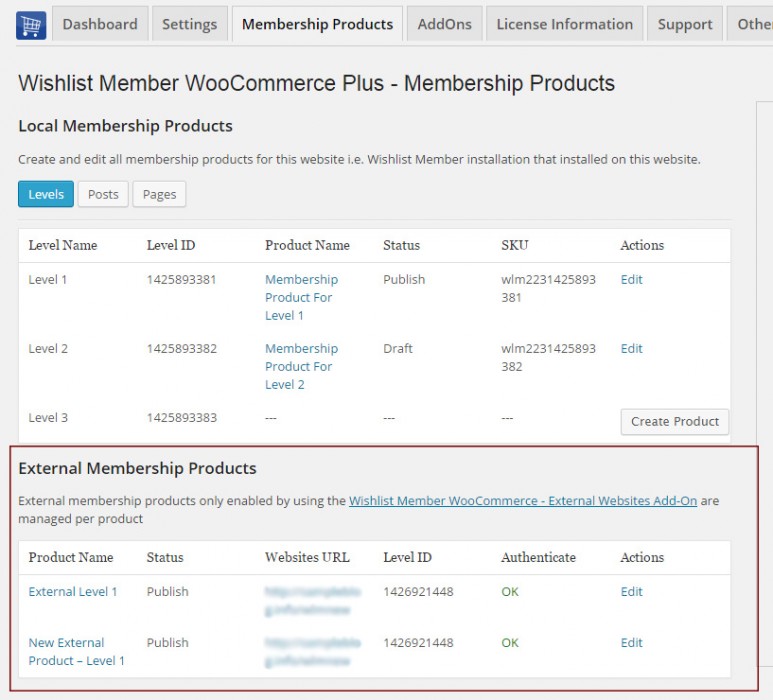
The External Membership Products table will be displayed only after you install and activate the add-on as seen in the below screenshot:
Variable Products Add-On
The Variable Products Add-On allows you to sell different membership levels to different variations within a WooCommerce variable product.
This means that you can sell different membership levels to every product variation you setup within a specific WooCommerce product.
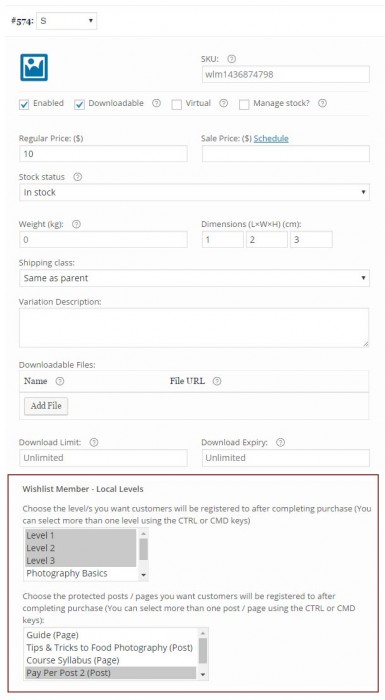
Step #1: Setup WooCommerce Variable Product - Enter the relevant WooCommerce product settings » Go to the Product Data Meta Box » Choose Variable Product and add your product variations.
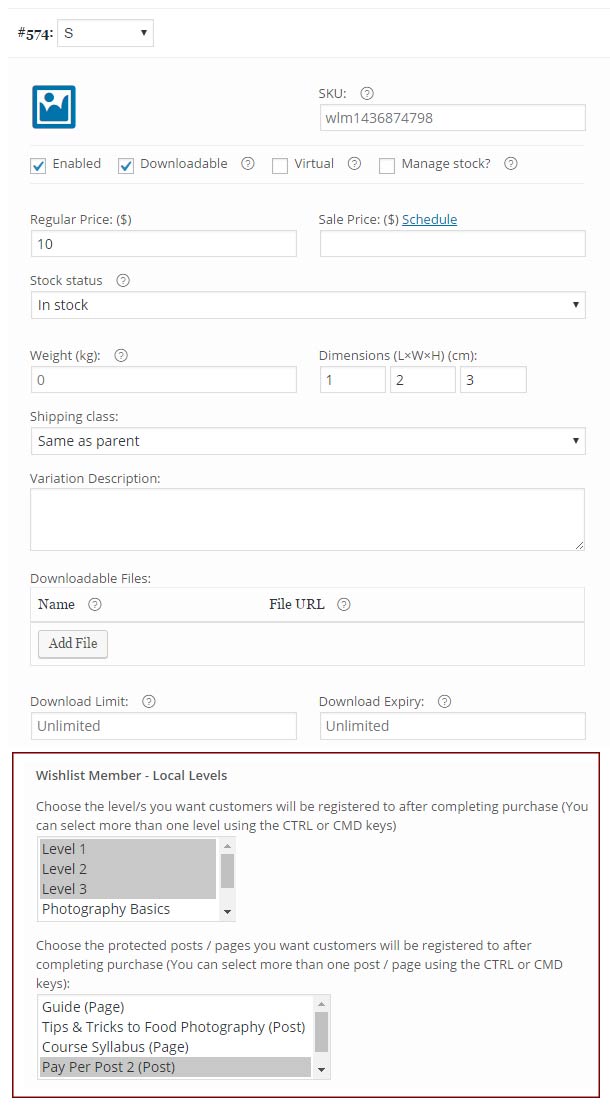
Step #2: Integrate the Membership Level/s and / or Pay-per-post Content - After adding the product variations click on each variation to edit its settings and integrate the relevant membership level/s and / or pay-per-post content as seen in the below screenshot:
Requirements
| Requirement | Minimum |
|---|---|
| WordPress | 5.2 and higher |
| Wishlist Member | 2.8 / 2.9 / 3.0 and higher |
| WooCommerce | 3.9 and higher |
Faqs
General
Wishlist Member WooCommerce Plus is used to sell membership products using Wishlist Member, so you can sell membership levels and / or pay-per-posts as WooCommerce products. All other aspects of payment and subscriptions are managed by WooCommerce plugin and extensions. Our product does not interfere with any of these aspects and it is working behind the scenes after a successful payment has been made. Because WooCommerce is working with hundreds of payment gateways and each payment gateway is programmed by different developers, many of the developers does not completely comply with WooCommerce coding guidelines. Because of that, cancellations are very difficult to support and can only be done to specific payment gateways that program their extensions correctly. Because Wishlist Member WooCommerce Plus was designed to work with all payment gateways, it is impossible to develop a cancellation feature that will work on all payment gateways. An example for that is WooCommerce Subscriptions extensions that is only supported by specific payment gateways and, as you can check their website, not all payments are fully supported with all the features.
As written in the previous question regarding cancellations, all payment subscriptions and trial periods are handled by WooCommerce Subscriptions extension and because of that, if the subscription extension supports trial periods you can do it.
Moving from the WooThemes plugin to Wishlist Member WooCommerce Plus" plugin can be done very easily and smoothly, just follow these steps: Step #1: Install the "Wishlist Member WooCommerce Plus" plugin on your website Step #2: Copy the SKU Prefix from the WooThemes plugin by going to WooCommerce menu > Settings > Wishlist Member tab Step #3: Paste the SKU Prefix to "Wishlist Member WooCommerce Plus" plugin by going to WL Extension menu > Wishlist Member WooCommerce Plus > Settings Step #4: Deactivate the "WooCommerce Wishlist Member Integration" Plugin by WooThemes Once you have changed the SKU Prefix and deactivated the WooThemes plugin the integration will continue to work just as it did before you activated Wishlist Member WooCommerce Plus plugin. You can check that everything is indeed working by checking your membership products in the Membership Products Summary Table and see that all the membership products have been identified correctly by Wishlist Member WooCommerce Plus as seen in the below screenshot:
You will need to use WooCommerce version 2.3
No, the External Membership Sites & Remote Access Add-Ons are an addition to the main plugin, you must also purchase Wishlist Member WooCommerce Plus for the add-ons to work.
If both WooCommerce and Wishlist Member are installed on the exact WordPress installation, you will not need the "External Membership Sites Add-Ons Bundle", only the main plugin - Wishlist Member WooCommerce Plus
Yes, because you have 2 different WordPress installations you will need to use the add-on. Examples of different domains are: 1. http://domain1.com & http://domain2.com (different domains) 2. http://domain1.com/woo & http://domain2.com/wlm (different directories) 3. http://woo.domain1.com & http://wlm.domain2.com (different sub-domains)
Yes, if you need to integrate multiple membership sites and you need more licenses (each membership site requires a license), you can purchase them separately in this link >> Purchase Remote Access Add-On
Actually, it is very simple and easy to install and activate all 3 and make them work seamlessly. The process is very quick and requires only 4 simple steps. You can find all the information in our detailed manual in this link
As far as we know, the plugin does not conflict with any other plugin. Wishlist Member WooCommerce Plus keeps a very strict code method so the chances that it’s causing any problem are very low. If you have any problems or conflicts, please contact the support department.
No, Wishlist Member WooCommerce Plus is a Wishlist Member dedicated plugin.
If you haven't found your answers in the product's page and in the manual, please contact our support team and we will get back to you shortly