Description
Wishlist Member WooCommerce Plus – Members Registration Add-On allows you to automatically register members to any membership level / pay-per-post after purchasing a specific product from your WooCommerce store.
The add-on allows you to assign multiple WooCommerce products to the same membership level and / or pay-per-post content.
To use the add-on you also need to purchase Wishlist Member WooCommerce Plus plugin, OR you can get the complete bundle – Plugin + Add-Ons at 20% off!
Exclusive Features
- Automatic Registration – The customer registration to the relevant membership levels/ pay-per-posts is done automatically by the add-on right after the customer purchases the product/s
- Supports all Types of Products – No matter which type of product the customer purchases, whether physical / digital etc. the add-on will register the customer to the relevant level/s and / or pay-per-posts as defined in the settings
- Unique Settings for Each Product Individually – The membership levels and / or pay-per-posts are set for each product individually
- Supports Multiple Membership Levels and / or Pay-per-posts Registration –
- Supports both New & Existing Members – If the customer is already an existing member, the add-on will automatically add him to the relevant membership levels
- Membership Details Email is Sent – The members receive an email with their membership details as defined inside the Wishlist Member WooCommerce Plus plugin
Register Members Automatically in 2 Simple Steps
All you need to do to register members automatically to any Wishlist Member membership level and / or pay-per-post is follow 2 simple steps:
- Go to the Products menu and click to edit the relevant product
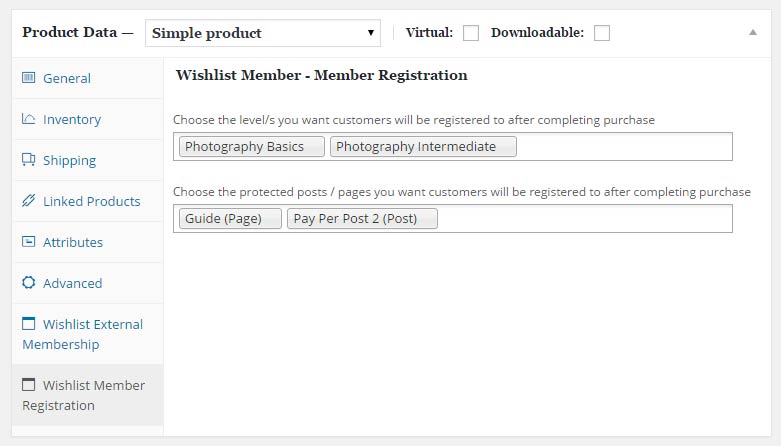
- Go to the Product Data Meta box > under the Wishlist Member Registration tab and choose the membership level/s and / or pay-per-posts as seen in the below screenshot:
Special Discount for Purchasing One of the Bundles:
Wishlist Member WooCommerce Plus Bundle (20% Discount) that includes:
- Wishlist Member WooCommerce Plus Plugin
- The External Membership Sites Add-Ons Bundle
- The Member Registration Add-On
- The Custom Post Type Add-On
The Ultimate Wishlist Member WooCommerce Bundle (30% Discount) that includes:
- Wishlist Member WooCommerce Members Discounts Plugin
- Wishlist Member WooCommerce Plus Plugin
- Wishlist Member WooCommerce Plus – External Membership Sites Add-Ons Bundle
- Wishlist Member WooCommerce Plus – Variable Products Add-On
- Wishlist Member WooCommerce Plus – Member Registration Add-On
- Wishlist Member WooCommerce Plus – Custom Post Type Add-On
1-Minute How To Videos
How to Register WooCommerce Customers to Any Wishlist Membership Level?
[leadplayer_vid id=”5A5875CB1B3FB”]FAQs
What the Member Registration add-on adds to the basic functionality of Wishlist Member WooCommerce Plus plugin?
Wishlist Member WooCommerce Plus allows you to sell membership levels or pay-per-post content using the WooCommerce platform.
In Wishlist Member WooCommerce Plus a WooCommerce product is assigned to specific content and when a customer purchases this WooCommerce product he will automatically have access to the specific membership level or the pay-per-post content.
Using the Member Registration add-on you can assign membership levels and / or pay-per-post content to regular WooCommerce products such as: physical products, digital goods, software etc. and when the customer purchases that WooCommerce product he will also automatically be granted access to the membership level/s and / or pay-per-post content that are defined in the product’s settings.
You can define multiple membership levels and / or pay-per-post content to each WooCommerce product.
Can I assign more than 1 WooCommerce product to the same membership level?
Yes, using the Member Registration Add-On you can connect as many WooCommerce products you want to the same membership level.
Does the Member Registration Add-On supports pay-per-posts custom post types?
Just like the Wishlist Member WooCommerce Plus core plugin, the support of custom post types can be enabled using the dedicated Custom Post Type Add-On.
Custom Post Types in Wishlist Member are handled differently and because not all Wishlist Member WooCommerce Plus users need this function we have added it as a dedicated add-on to lower the plugin’s price.
Who handles the payment process, Wishlist Member of WooCommerce?
When integrating Wishlist Member and WooCommerce then WooCommerce is the one responsible for the payment process.
Though this question is not related to Wishlist Member WooCommerce Plus nor its add-ons, this is a very popular question among our clients so we have added it to the FAQ section.
What version of WooCommerce I need in order to use the plugin?
You will need to use WooCommerce version 2.3 and higher
Can I use only the Member Registration Add-On without purchasing Wishlist Member WooCommerce Plus?
No, the Member Registration Add-On is an addition to the main plugin, you must also purchase Wishlist Member WooCommerce Plus for the add-ons to work.
Does the plugin have any conflicts with other plugins?
As far as we know, the plugin does not conflict with any other plugin. Wishlist Member WooCommerce Plus, as well as all its add-ons, keep a very strict code method so the chances that it’s causing any problem are very low. If you have any problems or conflicts, please contact the support department.
Does the plugin integrate with every membership site platform?
No, Wishlist Member WooCommerce Plus and the add-ons are Wishlist Member dedicated only.
I have more questions and I haven’t found my answers, how can I contact you?
If you haven’t found your answers in the product’s page and in the manual, please contact our support team and we will get back to you shortly
Requirements
- WordPress 5.2 and higher
- Wishlist Member 2.8 / 2.9 / 3.0 and higher
- WooCommerce 3.9 and higher
Other Add-Ons
We have enhanced Wishlist Member WooCommerce Plus with powerful features.
These features are sold separately as add-ons and they require Wishlist Member WooCommerce Plus.
These are the Other Add-Ons:
* Click on the add-on’s name for more information
Custom Post Type Add-On
Allows you to sell custom post types individually using Wishlist Member & WooCommerce platform.
Integrating the Custom Post Type Add-On in 4 Simple Steps:
- Enable your chosen custom post types within Wishlist Member setting
- Define Wishlist Member settings inside the relevant custom post type
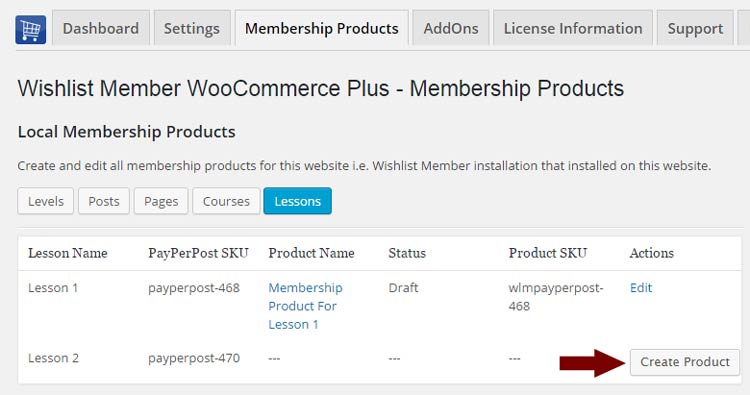
- Create your membership product using Wishlist Member WooCommerce Plus (Notice in the below screenshot that the custom post types were added automatically to the tables)
- Click Edit, define the Product Data settings and content & publish it
External Membership Sites Add-Ons Bundle
Allows you to sell memberships that are located on a separate domain (different WordPress installation) than your WooCommerce website.
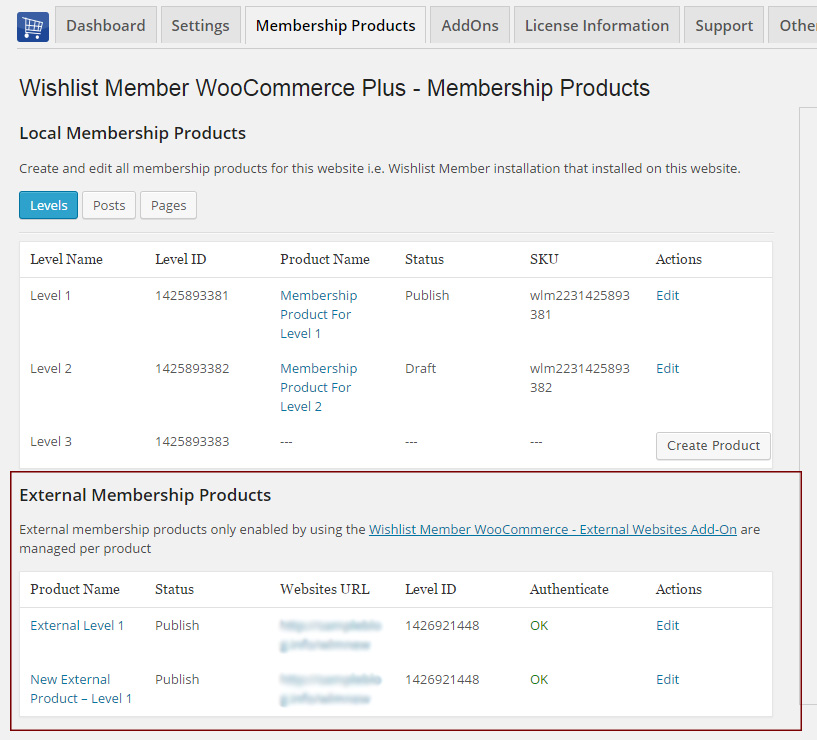
The External Membership Products table will be displayed only after you install and activate the add-on as seen in the below screenshot:
Variable Products Add-On
The Variable Products Add-On allows you to sell different membership levels to different variations within a WooCommerce variable product.
This means that you can sell different membership levels to every product variation you setup within a specific WooCommerce product.
Step #1: Setup WooCommerce Variable Product – Enter the relevant WooCommerce product settings » Go to the Product Data Meta Box » Choose Variable Product and add your product variations.
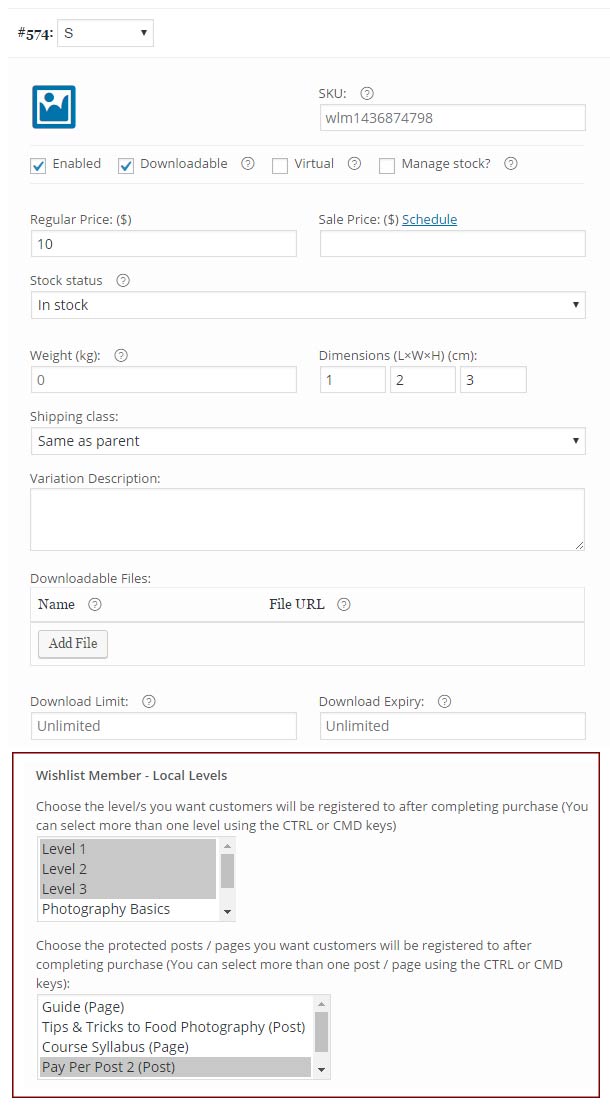
Step #2: Integrate the Membership Level/s and / or Pay-per-post Content – After adding the product variations click on each variation to edit its settings and integrate the relevant membership level/s and / or pay-per-post content as seen in the below screenshot: