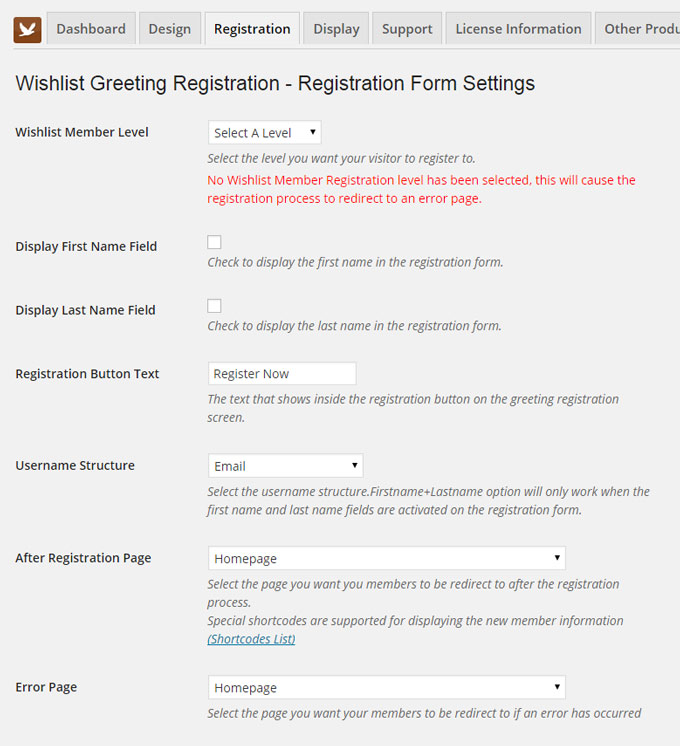
In the Registration tab you can define the registration settings of the greeting registration form.
These settings include the following options:
- Wishlist Member Level – The membership level members will be registered
- Display First Name Field – Ability to include the first name field in the registration form
- Display Last Name Field – Ability to include the last name field in the registration form
- Registration Button Text – Text inside the registration button
- Username Structure – Can be the complete email, only the email prefix or first and last name
- After Registration Page – The page members will be redirected to after completing the registration process
- Error Page – The page members will be redirected to in case of an error
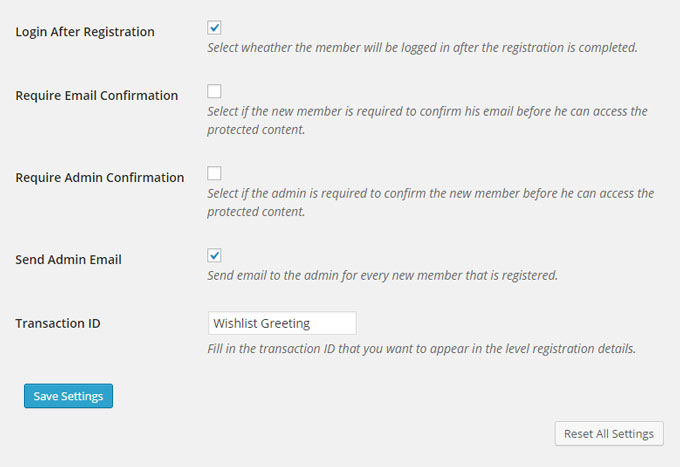
- Login After Registration – Check the box to allow automatic login after registration
- Require Email Confirmation – Check to require members to confirm their email before they can access any content
- Require Admin Confirmation – Check if you want the admin to manually approve members before they have access to the content
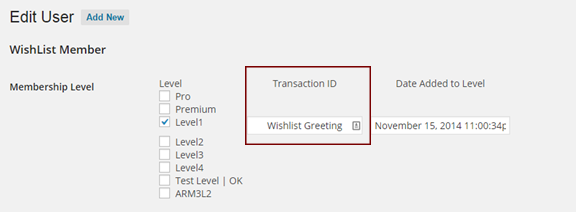
- Transaction ID – The transaction ID that allow you to know which registration was completed using the greeting registration form. You will find the Transaction ID field in WordPress Users menu > Edit User > under the Wishlist Member settings (screenshot further down this page)
Here are screenshots of the Registration tab (click on the images to enlarge them):
The Transaction ID
The transaction ID can be found in the Users menu > Edit User screen under Transaction ID.
Using a unique transaction ID you will now which users registered to your site through Wishlist Greeting Registration.
Here is a screenshot of the transaction ID: