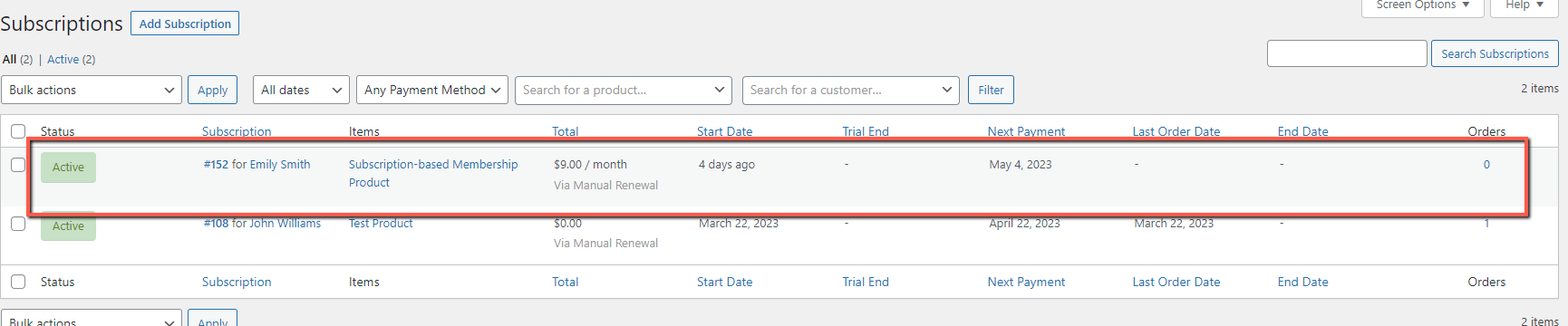
Using MemberPress Woocommerce Plus, you have the ability to sell subscription-based memberships through WooCommerce.
In this video tutorial we go over how to create a subscription-based membership product.
Please note that prior to creating a subscription-based product, you must have the "WooCommerce Subscriptions" extension installed and activated on your website.
To get started with setting up the membership product, begin by clicking the "Create New Product" option in WooCommerce.
Then, scroll down to the "Product Data" meta box.
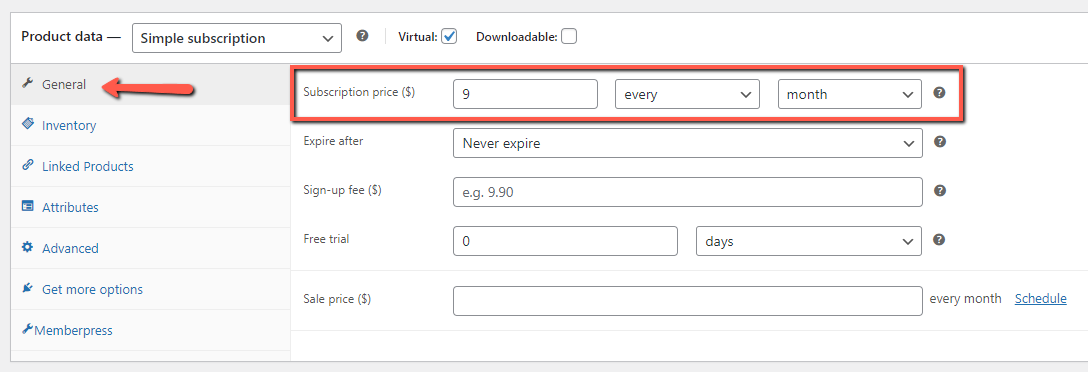
To begin, you will need to input the subscription information, as you would with any other regular WooCommerce subscription product.
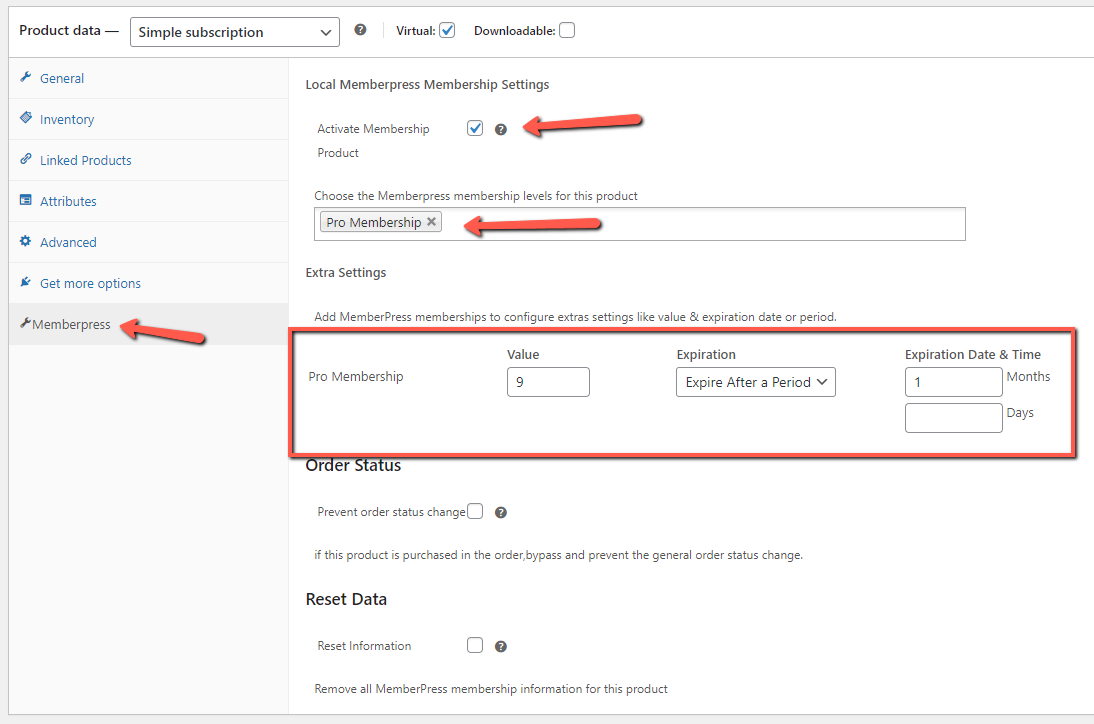
Afterwards, navigate to the “MemberPress” tab to define the membership settings.
Activate the membership product and select the relevant memberships for it.
In the “Extra Settings” section, you can specify the membership’s value.
The value will be reflected in the MemberPress reports dashboard:
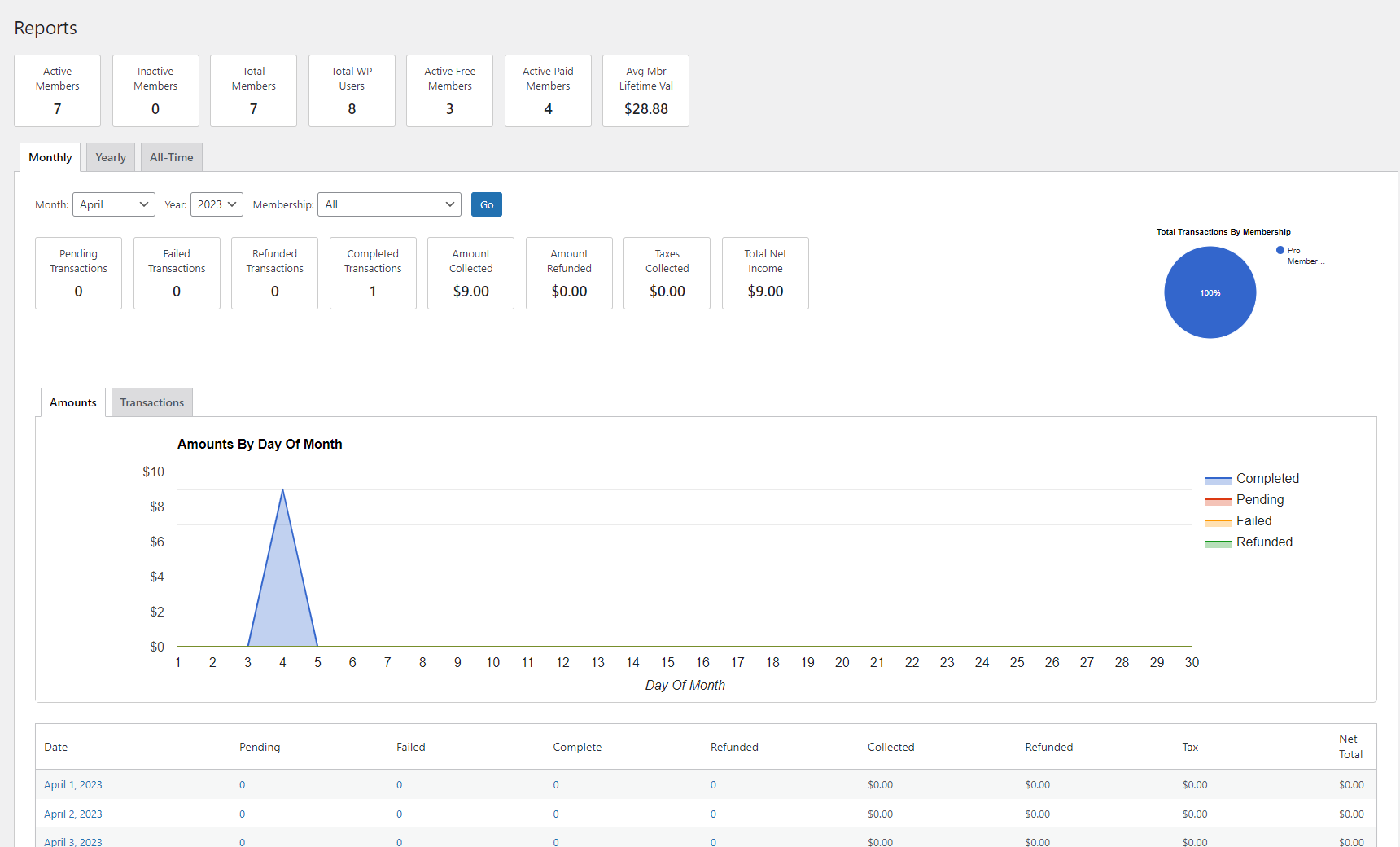
The value can be identical to the price of the WooCommerce product, or it can be lower, if the membership is just a portion of the overall product.
You can then choose whether the membership will expire or not.
In order to give members access to the membership’s content for as long as the subscription is active, the expiration settings should be the same as the product’s subscription settings located in the “General” tab.
So for a monthly 9 dollars subscription, you need to set the membership to expire after a period of one month.
When a customer will purchase this membership product, a new MemberPress transaction will be created.
The transaction will expire after one month.
If the subscription is renewed, a new MemberPress transaction will be created for the next month, allowing the member to maintain access to the content.
If the subscription will not be renewed, a new MemberPress transaction will not be created, and the member will no longer have access to the content.
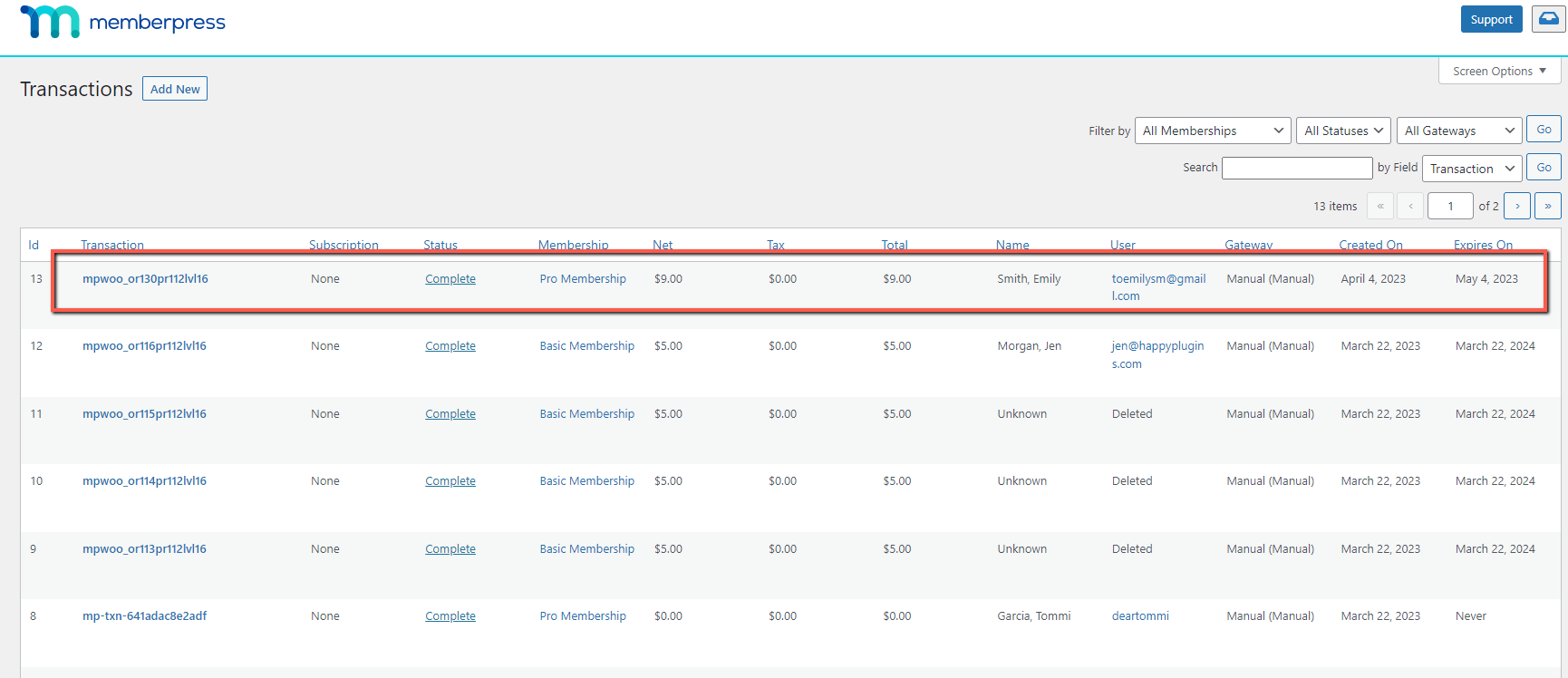
The subscription’s information will be reflected in the WooCommerce: